
Running multiple sites on a single AWS instance for $5

It’s cheap but not easy, unless you read this first.
This is not an ad, but the title sure sounds like it.
As a frequent AWS user, I decided to try Lightsail to deploy a WordPress multi-site cloud server. It isn’t as easy as AWS makes it sound. Most sites require email setup, domain forwarding, and SSL security, which are hardly touched upon in the AWS Lightsail Setup Instructions. Basic items are missing from those instructions, so I thought I’d talk about them here in case anyone has similar issues.
Everything is fine in the AWS instructions, until “Step 3: Sign in to the administration dashboard of your WordPress website.” You’ll be able to temporarily sign into the dashboard, but then step 4 will immediately disable this functionality. This may cause anger, confusion, disorientation, or malaise.
Instead, it’s better to postpone step 3 and complete step 4 (create static IP address and attach it to the instance) and step 5 (create a Lightsail DNS zone and map a domain to your WordPress instance). After step 5, there are a couple things you must do before you are able to start designing your wordpress site.
First, make note of the 4 name servers you’ll be given when you create the DNS zone in step 5. You’ll need to go to your registrar (unless you’re using route 53, an AWS registrar) and add these 4 name servers to your domain. On many registrar sites (like GoDaddy) this is done under domain -> name servers -> custom name servers. AWS says you then need to wait 48 hours for the DNS changes to take effect, but in my experience this usually takes only a few minutes.
Second, you need to connect to your instance using ssh (just like in step 2 when you retrieved the password), by clicking on the icon shown in this image:
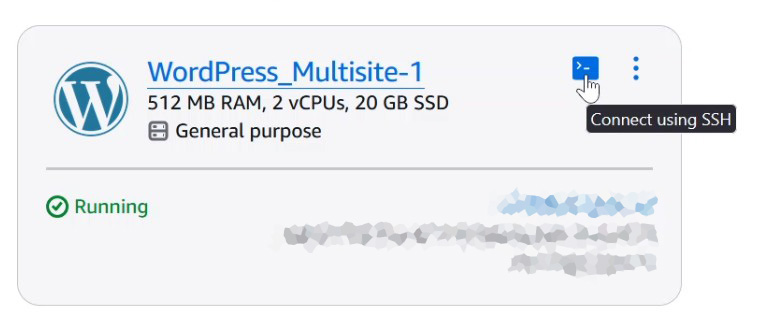
When the wordpress instance was created, it uses a default domain name. This must be changed in ssh, and is done with the following command:
sudo /opt/bitnami/configure_app_domain --domain your-domain.comMake sure to replace your-domain.com with your own domain.
Setting Up Email
If you have your own web domain, you’re most likely going to want an email associated with that domain. For this I use fastmail.com as a host, and within fastmail I set up a unique password for wordpress sites. This is pretty straightforward, but in your Lightsail instance you’ll need to add a DNS record for email routing. These are MX records, and the priority is determined by your email host. Usually they will route your email to 2 hosts, such as in1.smtp.something.com and in2.smtp.something.com. Set the priority to 1 for the first one and 2 for the second one, the name to “@” and “routes to” the smtp address(es) provided by your email host.
In the end, my DNS contains only 4 records: An A record for the main domain, a CNAME record for a canonical catch-all (such as adding www. before my main domain), and two MX records for email. Later I will add txt records for spf and dmarc, a security measure so nobody tries to spoof emails as coming from your domain.
Adding SSL Encryption
Thankfully, the bitnami wordpress image created for Lightsail instances has a nearly automatic SSL encryption setup. Once again, connect to your instance via ssh and execute the following command:
sudo /opt/bitnami/bncert-toolAfter a few prompts, this tool will set up your website with LetsEncrypt, configure it on Apache, and set up monthly renewals of your encryption license using cron.
Start wordpressing!
If everything is set up correctly, you will now be able to go to your-domain.com/wp-login.php, log in as “user” with the bitnami password from step 2, download some themes and plugins, and put together the website of your dreams.
Multiple Domains and other configurations
So far, I’ve covered the setup for a single domain. For help and information setting up multiple domains on a single AWS instance, bitnami has published an excellent, comprehensive article called Configure WordPress Multisite. Happy reading!